Camera movement is one of the most important tools in filmmaking. A slow dolly forward builds tension. A rising crane shot creates grandeur. A locked-off static frame lets the action speak for itself.
In AI video generation, you have two ways to control camera movement: dedicated presets and text prompts. This guide covers both approaches, explains when to use each technique, and helps you choose the right camera movement for every scene.
Quick answer: Melies offers camera movement control through two methods: LTX 2 Pro (50 credits) provides three dedicated presets - Dolly, Jib, and Static - using camera LoRA technology for precise control. All other video models like Kling v3 Pro and Veo 3.1 support camera movement through text prompts using standard cinematography terms like "slow dolly forward" or "crane shot rising."
Camera Movement Presets on LTX 2 Pro
LTX 2 Pro is the only model on Melies with dedicated camera movement presets. These presets use camera LoRA technology to give you precise, predictable control over how the camera moves.
Dolly
A dolly shot moves the camera forward or backward through the scene, as if mounted on a track or wheeled platform.
What it looks like: The camera glides smoothly toward or away from the subject. Objects in the foreground pass by while the background shifts in parallax, creating a strong sense of depth and three-dimensionality.
When to use it:
- Approaching a character: A slow dolly forward draws the viewer closer, building intimacy or tension
- Revealing a space: A dolly back pulls away to reveal more of the environment
- Following action: Track alongside moving subjects
- Establishing depth: Show the spatial relationship between foreground and background elements
Classic film examples: The hallway scenes in The Shining, the approach shots in Blade Runner 2049, corridor tracking in Oldboy.
Jib
A jib shot moves the camera vertically, like a crane arm lifting up or sweeping down.
What it looks like: The camera rises or descends smoothly, shifting the viewer's perspective from ground level to aerial (or vice versa). This creates dramatic reveals and establishes scale.
When to use it:
- Establishing shots: Rise up to reveal a cityscape or landscape
- Dramatic reveals: Start low and rise to show what was hidden
- Power dynamics: Moving the camera up on a character makes them feel powerful; moving down makes them feel vulnerable
- Scene transitions: A rising jib at the end of a scene naturally transitions to the next
Classic film examples: The opening crane shot of Touch of Evil, the rising shots in Lord of the Rings, the descending reveals in Vertigo.
Static
A static shot locks the camera in place, like mounting it on a tripod.
What it looks like: The frame is completely stable. Nothing moves except what is happening within the scene. This draws all attention to the subject and action.
When to use it:
- Dialogue scenes: Let the actors command attention without camera distraction
- Composed frames: When the visual composition is strong enough on its own
- Documentary feel: Static shots create an observational, realistic quality
- Contrast: After a series of moving shots, a static frame creates powerful emphasis
Classic film examples: The symmetrical compositions of Wes Anderson, the long static takes of Yasujiro Ozu, the tableau shots of Moonlight.
LTX 2 Pro Specifications
| Feature | Details |
|---|---|
| Camera presets | Dolly, Jib, Static |
| Technology | Camera LoRA |
| Credits | 50 per generation |
| Duration | ~4.8 seconds |
| Resolution | HD |
| Speed | Fast |
At 50 credits per generation with fast output, LTX 2 Pro is excellent for quickly testing camera movements and iterating on shots before committing to more expensive models for final quality.
Camera Movement Through Text Prompts
For models without dedicated presets, you can describe camera movement in your text prompt. This works across all video models, though results vary by model.
If you are using ByteDance's latest model, the Seedance 2.5 prompt guide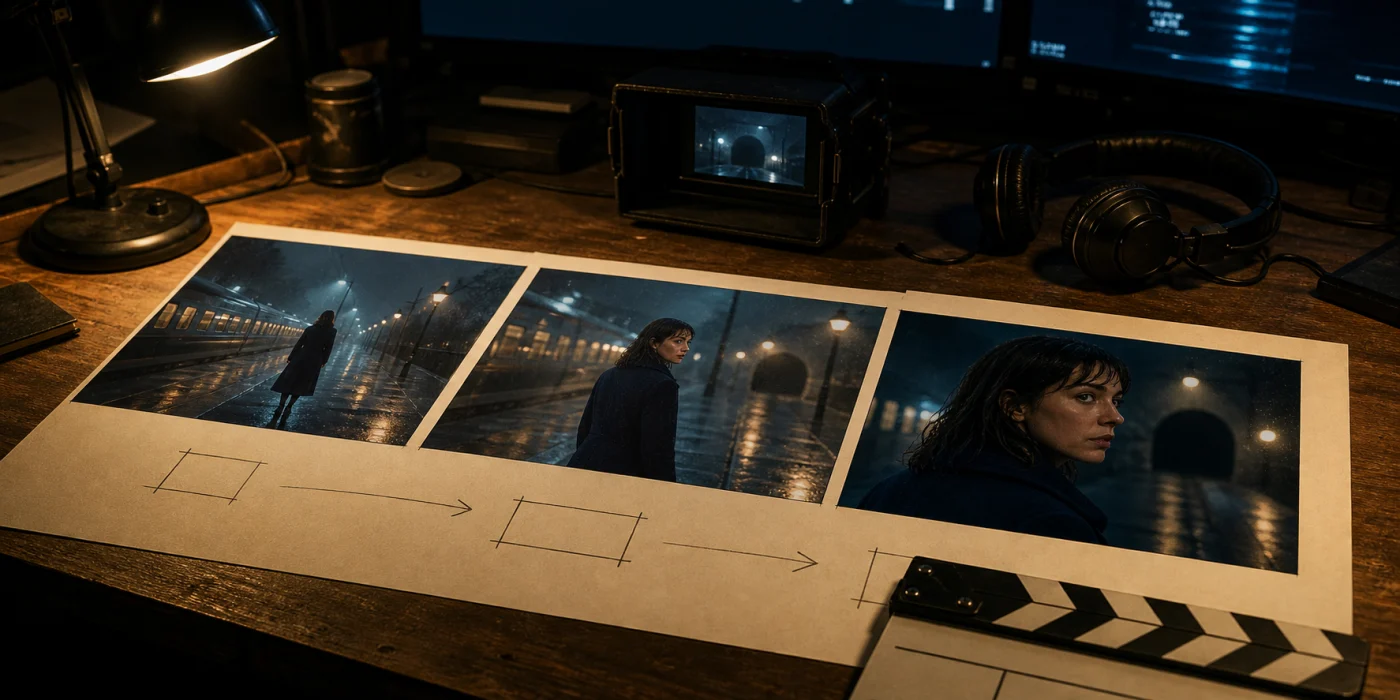 Seedance 2.5 Prompt Guide: Better AI Video PromptsLearn how to write Seedance 2.5 prompts for 30-second video, image references, camera movement, native audio, editing, and consistent characters. shows how to combine a camera path with multi-image references, synchronized sound, and a staged timeline up to 30 seconds.
How to Write Camera Movement Prompts
Be specific and use established cinematography terms. The AI models have been trained on real footage and understand standard camera vocabulary.
Effective prompt patterns:
| Movement | Prompt Language |
|---|---|
| Dolly forward | "slow dolly forward toward the subject" |
| Dolly back | "camera pulls back to reveal the full scene" |
| Pan left/right | "slow pan from left to right across the landscape" |
| Tilt up/down | "camera tilts up from the ground to the sky" |
| Crane/jib up | "crane shot rising above the city" |
| Tracking shot | "camera tracks alongside the running character" |
| Zoom in | "slow zoom into the character's face" |
| Orbit | "camera orbits around the subject" |
| Handheld | "handheld camera following the action" |
| Steadicam | "smooth steadicam moving through the hallway" |
Tips for Prompt-Based Camera Movement
Be specific about speed: "Slow dolly forward" gives very different results than "fast push in." Specify the pace.
Describe direction clearly: "Pan left to right" is unambiguous. "The camera moves" is vague and will give unpredictable results.
Combine with scene description: Do not write only camera direction. Include the subject and scene:
Slow dolly forward through a misty forest at dawn, moving toward a lone cabin with warm light in the windows.
One movement per clip: Asking for multiple complex camera movements in a single short clip usually produces confused results. Stick to one primary movement per generation.
Model Comparison for Prompt-Based Camera
Different models respond to camera prompts with varying degrees of precision:
| Model | Camera Prompt Response | Best For |
|---|---|---|
| Veo 3.1 | Excellent, cinematic quality | Final shots, premium quality |
| Kling v3 Pro | Very good, consistent movement | Character scenes with movement |
| Seedance 2.5 | Prompt-directed, staged shots up to 30s | Long continuous moves with synchronized audio |
| Hailuo 02 | Good for simpler movements | Basic pans and dollies |
| WAN v2.2 | Moderate, less precise | Simple movements only |
| LTX 2 Pro | Use presets instead | Preset-based control |
For the best prompt-based camera control at the highest quality, Veo 3.1 (400 credits) and Kling v3 Pro (100 credits) deliver the most cinematic results.
Cinematic Camera Techniques for AI Video
Understanding why certain camera movements work helps you choose the right one for each scene. Here are the key techniques:
The Establishing Shot (Jib or Drone)
Start your film with a wide, moving shot that sets the scene. A jib rising over a city or a drone-style flyover immediately tells the audience where they are.
Prompt example: "Aerial drone shot slowly flying over a coastal city at sunset, revealing the harbor and downtown skyline"
The Approach (Dolly Forward)
Build tension or intimacy by moving the camera slowly toward a character or object. This is the "something is about to happen" shot.
Prompt example: "Slow dolly forward through a dark corridor toward a half-open door with light spilling out"
The Reveal (Jib Up or Dolly Back)
Start tight on a detail, then pull back or rise up to show the bigger picture. Great for surprises, scale reveals, and establishing context.
Prompt example: "Camera starts on a close-up of a hand holding a letter, then cranes up to reveal the character standing on a rooftop overlooking the city"
The Follow (Tracking Shot)
Move alongside a character to create energy and forward momentum. Essential for chase scenes, walking conversations, and journey sequences.
Prompt example: "Camera tracks alongside a woman running through rain-soaked neon streets at night"
The Observation (Static)
Sometimes the most powerful choice is no movement at all. A locked-off frame forces the audience to watch the action unfold without the camera directing their attention.
Prompt example: "Static wide shot of an empty train platform, a figure enters from the left and sits on a bench"
Building a Sequence With Mixed Camera Movements
Great films mix camera techniques. Here is how to build a short sequence using different movements:
- Establishing shot (Jib up): Wide view of the location
- Approach (Dolly forward): Move toward the main character
- Static close-up: Character reacts to something
- Tracking shot: Character begins to move
- Reveal (Dolly back): Pull out to show what they are walking toward
Generate each shot with the appropriate camera movement, then arrange them in the Melies timeline editor. Add transitions and audio to complete the sequence.
Combining Camera Movement With Other Features
Camera Movement + Variations
After generating a shot with camera movement, use the variation system to explore alternatives:
- Change the lighting (Golden hour vs. Blue hour gives the same camera move a completely different mood)
- Adjust the color grade (Teal & Orange for blockbuster feel, Monochrome for drama)
- Try different shot sizes (The same dolly move looks different as a wide shot vs. medium shot)
Camera Movement + Multi-Shot
On Kling v3 Pro, combine camera movement prompts with multi-shot sequences to build complex scenes where the camera technique changes between shots.
Camera Movement + Extension
Generate a camera movement shot, then extend it to create a longer continuous take. A 5-second dolly forward extended twice becomes a 15-second tracking shot.
What to Try Next
- AI Video Generator - Compare the current video model roster
- How to Extend AI-Generated Videos
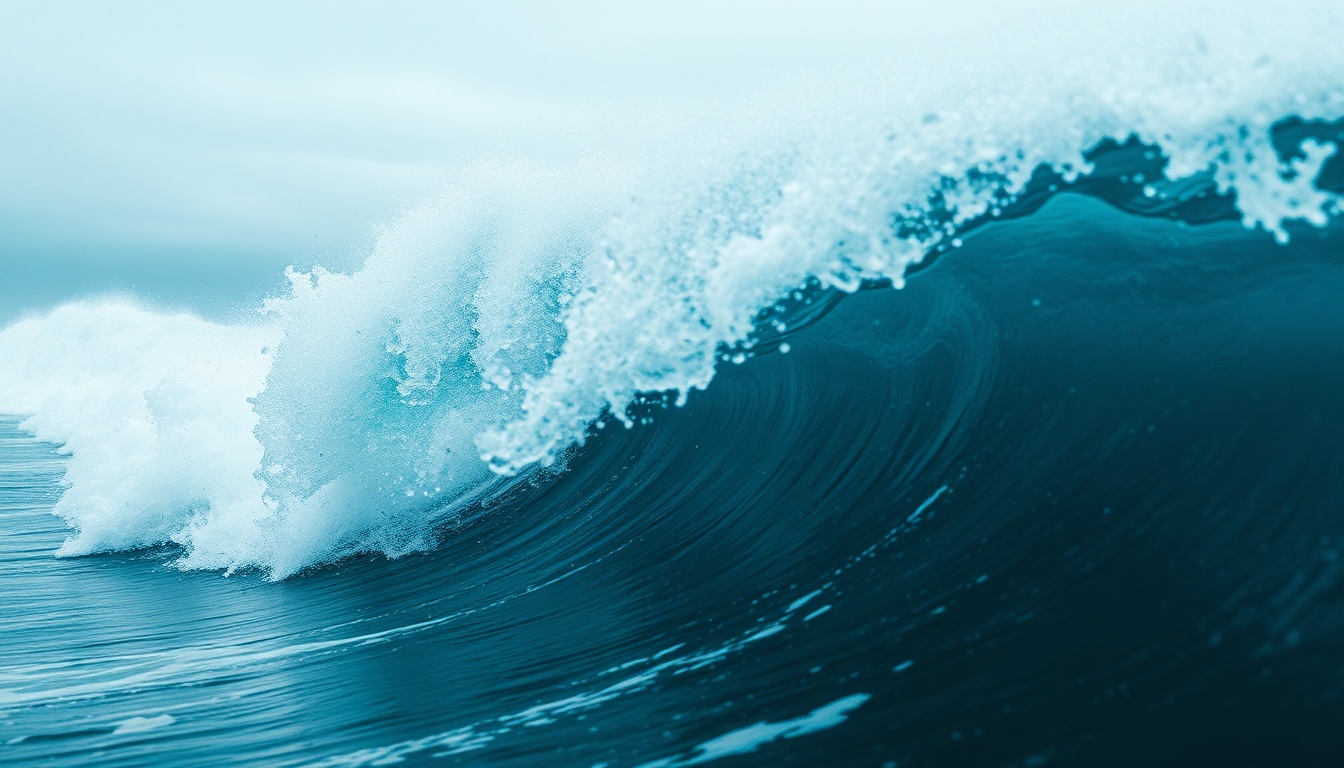 How to Extend AI-Generated VideosLearn how to make an AI video longer with final-frame continuation, current model options, honest credit costs, and tips for smoother results. - Make longer continuous shots
 - How to Create an AI Film
 AI Filmmaking: How to Create an AI Film from Idea to ExportLearn the complete AI filmmaking workflow with Melies. Generate ideas, cast AI actors, create storyboards, produce video clips, edit on a timeline, and export your finished AI film. - End-to-end production guide
 - AI Image Styles Guide
 AI Image Styles: Camera Angles, Lighting, Color Grading & MoreExplore all 11 AI image style categories in Melies including camera angles, lighting presets, color grades, art styles, moods, and more for cinematic visual storytelling. - Pair camera movements with visual styles
 - AI models guide
 AI Models Guide: Choosing the Right ModelCompare current AI image and video models in Melies. Choose the right model for filmmaking based on duration, resolution, features, and credit cost. - Compare all models