Subject extraction lets you isolate the main subject of an AI-generated image from its background. It is a simple but powerful tool for compositing, character reuse, and building flexible creative assets.
Quick answer: To extract a subject in Melies, right-click any AI-generated image and select the extract option. Melies automatically identifies the main subject, removes the background, and creates a clean cutout with a transparent background that you can reuse in new scenes, composite into other images, or save as a reference asset.
What Subject Extraction Does
When you extract a subject, Melies uses AI to:
- Identify the main subject - Detects the primary person, character, or object in the image
- Remove the background - Strips away everything behind the subject
- Create a clean cutout - Produces an image with a transparent background
The result is a clean, reusable asset with a transparent background. You can use it as a reference image to generate new images or videos featuring the same subject in completely different scenes. This works for both objects (a product, a prop, a vehicle) and people - you can turn an extracted person into a custom AI actor to maintain their likeness across your entire project.
How to Extract a Subject
Step 1: Generate or Select Your Image
Start with any AI-generated image in your project. This can be a freshly generated image or one saved in your assets. Subject extraction works best when the image has a clearly defined main subject - a person, character, or distinct object.
Step 2: Open the Context Menu
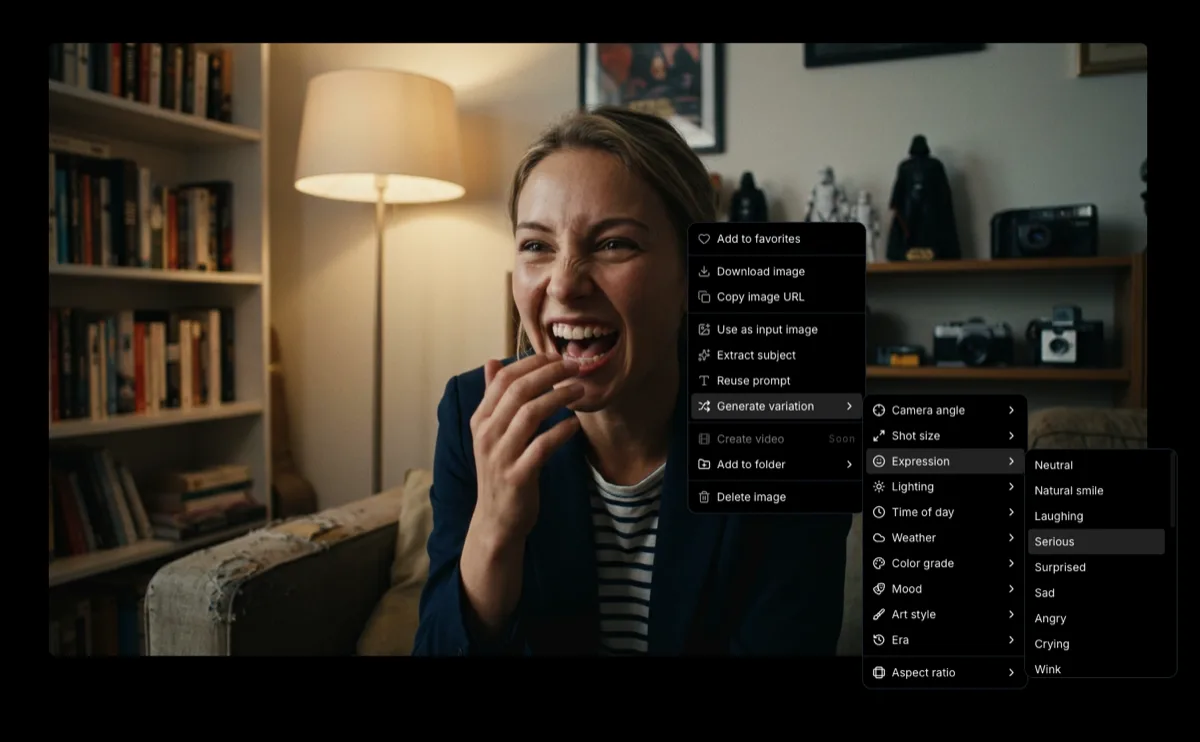
Right-click on the image to open the context menu. You will see the option to extract the subject alongside other actions like generating variations.
Step 3: Run the Extraction
Select the extract subject option. Melies will process the image and isolate your subject automatically. This usually takes just a few seconds.
Step 4: Review and Save
The extracted subject will appear with a transparent background. If the result looks clean, save it to your project assets for future use.
Use Cases
Character Isolation
Extract a character from one scene to reuse them in others. This is especially useful when combined with AI actors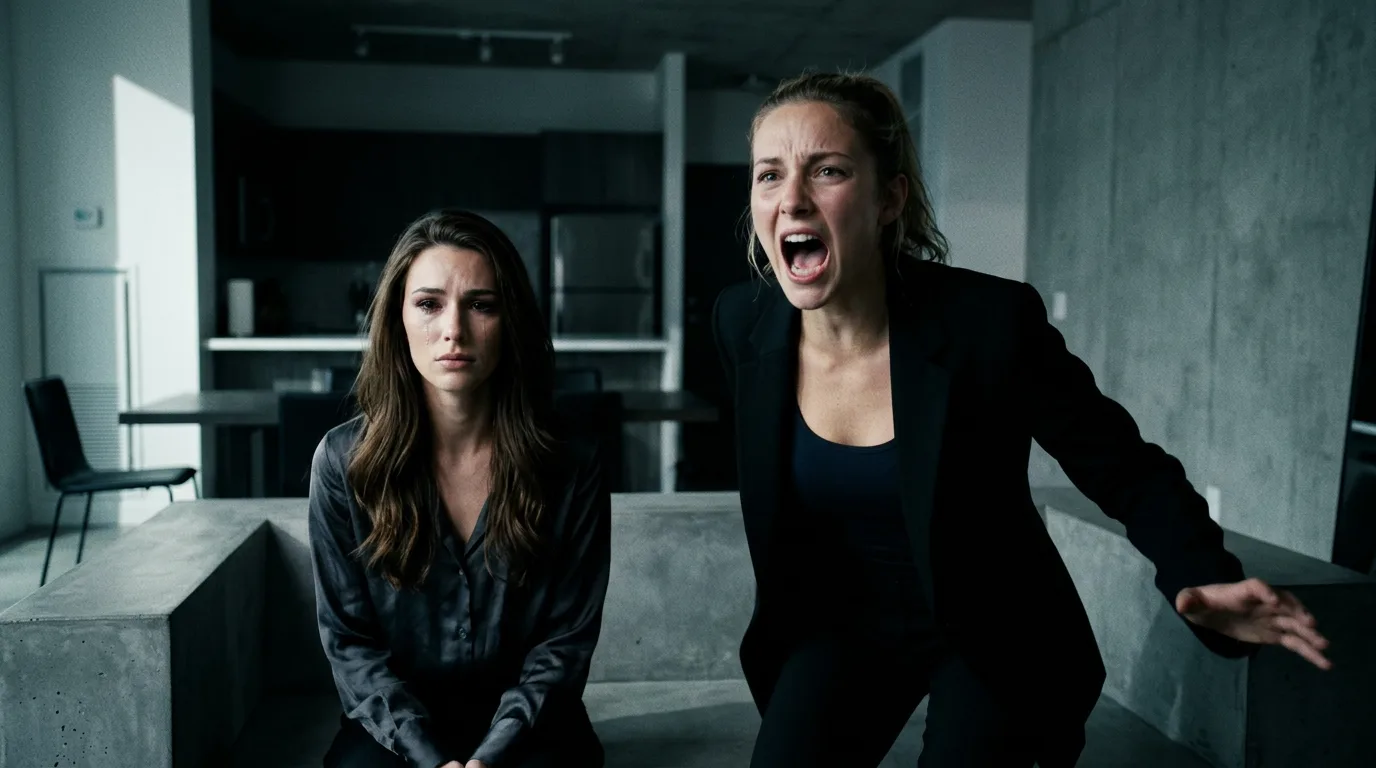 AI Character Generator: Create Consistent AI CharactersUse the Melies AI character generator to create consistent characters across scenes. Browse 148 pre-built AI actors and generate images with the same character every time. - generate your actor in a well-lit scene, extract them, then use the cutout as a reference for placing them in new environments.
Compositing
Need to combine elements from multiple images? Extract subjects from different generations and composite them together. A character from one scene can be placed into an environment from another.
Reference Images
Use extracted subjects as reference images for new generations. Some models like Flux Kontext and Flux Kontext Max accept reference images and can generate new scenes featuring your extracted character or object, maintaining consistency while changing the environment entirely.
Storyboard Flexibility
When building a storyboard, you might want the same character in many different settings. Extract the character once and reuse the cutout across your project, saving credits by not regenerating the character from scratch each time.
Asset Libraries
Build a library of extracted characters, objects, and props. Over time, you create a reusable collection of elements that can be mixed and matched across multiple projects.
Tips for Clean Extractions
Use High-Contrast Images
Images where the subject clearly stands out from the background produce the cleanest extractions. If your subject blends into the background (similar colors, soft edges), try regenerating with different lighting or a simpler background first.
Single Subject Works Best
Extraction is designed for one main subject. If your image has multiple people or objects, the AI will pick the most prominent one. For multi-character scenes, extract each character from separate images.
Solid Lighting Helps
Well-lit subjects with defined edges extract more cleanly than subjects in heavy shadow or fog. If you need to extract a subject, generate the base image with clear lighting like Soft/Diffused or High-key Bright before applying dramatic lighting in later stages.
Check the Edges
After extraction, zoom in to check the edges of your subject. Hair, fur, and translucent elements are the trickiest parts. If the edges are not clean enough, try generating the original image at a higher resolution or with a higher-quality model.
What to Do Next
- Generate AI images
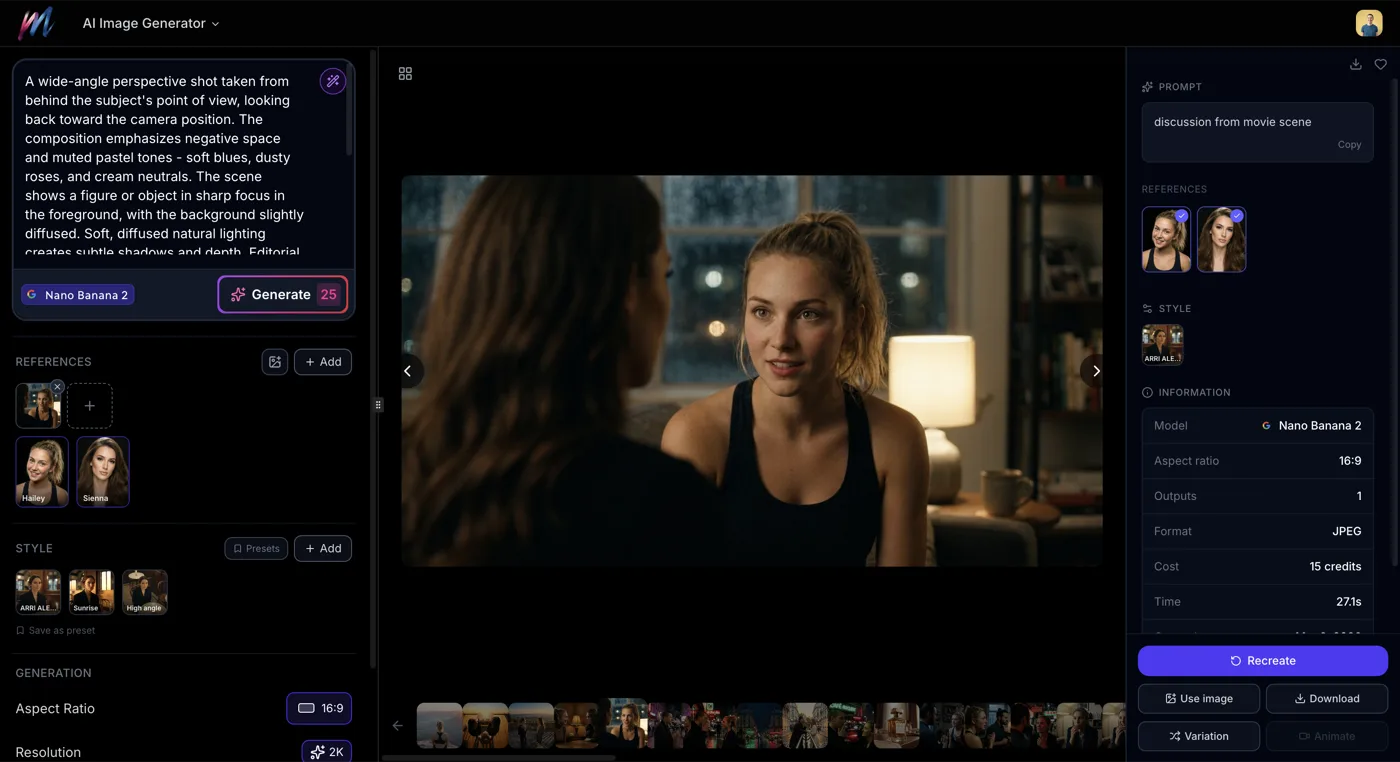 How to Generate AI Images with MeliesLearn how to generate AI images step by step with Melies. Choose from 16 models, write effective prompts, pick the right aspect ratio, and create stunning visuals. - Create images to extract subjects from
 - Create AI actorsAI Character Generator: Create Consistent AI CharactersUse the Melies AI character generator to create consistent characters across scenes. Browse 148 pre-built AI actors and generate images with the same character every time. - Use consistent characters with extraction for maximum flexibility
- Generate image variations
 How to Generate AI Image VariationsLearn how to generate AI image variations in Melies. Change camera angles, lighting, expressions, color grades, and more from a single base image. - Explore different styles after extracting your subject
 - Create AI videos
 AI Image to Video: How to Turn Any Image into Video with AITurn any AI image into video with Melies. Learn image-to-video generation, model selection, motion prompts, duration, resolution, audio, and references. - Turn your extracted subject into video content
Visit the AI Image Generator to start creating images and extracting subjects.