
The AI Video Generator in Melies turns images and text prompts into video clips. AI image-to-video is a direct way to bring storyboard frames, photos, and generated images to life. The current catalog combines models from Google, Kuaishou, ByteDance, MiniMax, Alibaba, Lightricks, and other providers for fast tests, referenced shots, native audio, and high-resolution output.
This guide walks you through the entire process, from choosing a model to extending and editing your videos.
Quick answer: To turn an AI image into video with Melies, select image-to-video mode, choose a model, describe the subject and camera motion, set duration and resolution, review the quote, and generate. Use a low-cost model for blocking, Seedance 2.5 for 4 to 30-second referenced shots with synchronized audio, or a 4K model when resolution is the priority.
Text-to-Video vs. Image-to-Video
Melies supports two generation modes:
Text-to-Video
Write a prompt describing a scene, and the AI generates a video from scratch. The model handles everything - composition, characters, motion, and camera movement.
Best for: Quick concepts, abstract scenes, situations where you do not have a specific starting image in mind.
Image-to-Video
Start with an AI-generated image (or upload your own) and the model animates it. You write a motion prompt describing how the scene should move.
Best for: Most filmmaking work. You already created a storyboard frame with the AI Image Generator, and now you want to bring it to life. The result is more predictable because the model starts from your specific visual.
Recommendation: Image-to-video is the preferred workflow for filmmakers. Generate your perfect frame first using the image tools (with AI actors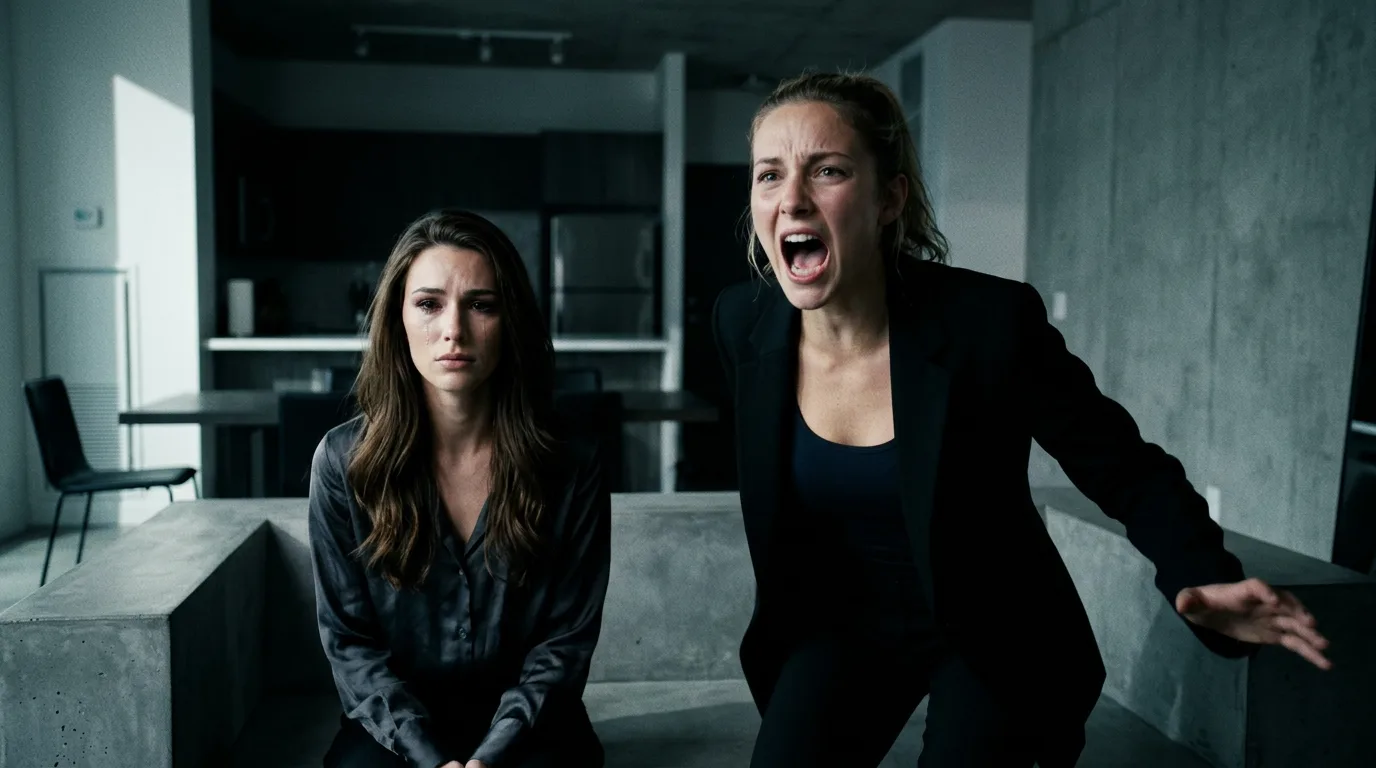 AI Character Generator: Create Consistent AI CharactersUse the Melies AI character generator to create consistent characters across scenes. Browse 148 pre-built AI actors and generate images with the same character every time., variations
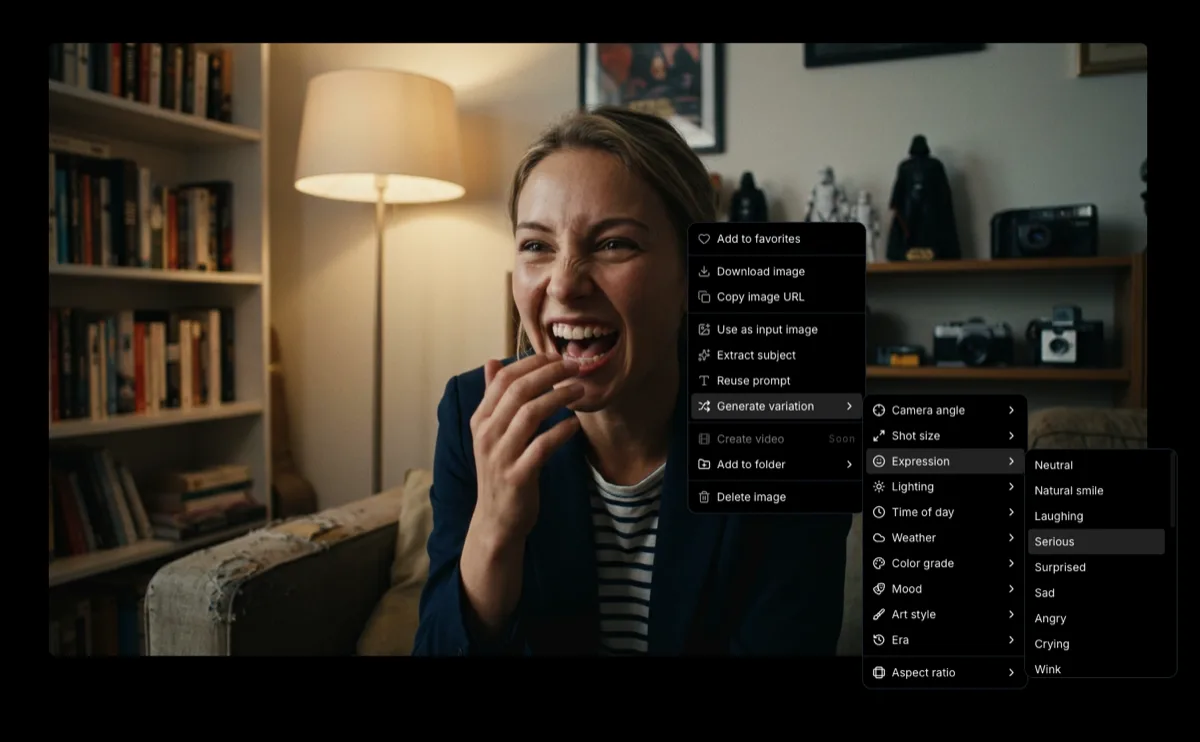 How to Generate AI Image VariationsLearn how to generate AI image variations in Melies. Change camera angles, lighting, expressions, color grades, and more from a single base image., and styles
 AI Image Styles: Camera Angles, Lighting, Color Grading & MoreExplore all 11 AI image style categories in Melies including camera angles, lighting presets, color grades, art styles, moods, and more for cinematic visual storytelling.), then animate it. This gives you maximum control over the final result.
Step 1: Choose Your Video Model
Melies maintains a growing video model roster. These examples show how to pick by task rather than by one universal ranking:
Premium Quality
Veo 3.1 (400 credits) - Google
- Resolution: 4K
- Duration: 4-8 seconds
- Special: Native audio generation (the video comes with sound)
- Best for: Final production clips where quality is everything
Kling v3 Pro (100 credits) - Kuaishou
- Resolution: HD
- Duration: 3-15 seconds
- Special: Multi-shot support, voice ID
- Best for: The best balance of quality, duration, and features
Mid-Range
Kling O3 Standard (80 credits) - Kuaishou
- Resolution: HD
- Duration: 3-15 seconds
- Special: Character elements
- Best for: Good quality with character consistency features
Seedance 2.5 (50 credits per second at 720p) - ByteDance
- Resolution: 480p or 720p
- Duration: 4-30 seconds
- Special: Synchronized audio, up to 30 image references, first-and-last-frame control
- Best for: Longer continuous shots, dialogue, multi-reference work, and controlled transitions
Hailuo 02 (70 credits) - MiniMax
- Resolution: 512P or 768P
- Duration: 6 or 10 seconds
- Best for: Good quality for social media and web content
Budget-Friendly
Kling v3 Standard (60 credits) - Kuaishou
- Resolution: HD
- Duration: 3-15 seconds
- Special: Character elements
- Best for: Longer clips at a lower cost, character work
WAN v2.2 (60 credits) - Alibaba
- Resolution: 480-720p
- Duration: ~5 seconds
- Best for: Budget generation, quick concepts
LTX 2 Pro (50 credits) - Lightricks
- Resolution: HD
- Duration: ~4.8 seconds
- Special: Camera LoRA for precise camera movement control
- Best for: Fast generation with specific camera movements
Step 2: Write Your Video Prompt
Video prompts are different from image prompts. You need to describe motion, not just a static scene.
Prompt rewrite assistant: The prompt field has a magic wand icon in the top right corner. Click it and Melies will rewrite your prompt automatically - enriching it with more detail, better scene description, and motion cues. You can write a rough idea like "woman walks through rain" and the assistant will expand it into a detailed, model-friendly prompt. It is the fastest way to go from a simple concept to a production-quality prompt.
Image-to-Video Prompts
When starting from an image, your prompt should focus on what moves and how:
Good prompts:
The woman slowly turns her head toward the camera, hair moving gently in the wind
Camera slowly dollies forward toward the building entrance, people walking in the background
Rain begins to fall, the character looks up at the sky, water droplets on the lens
Less effective prompts:
A beautiful woman standing in the rain (too static - this describes an image, not motion)
Everything moves (too vague - the model needs specific direction)
Text-to-Video Prompts
When generating from text only, describe both the scene and the motion:
A detective walks through a neon-lit Tokyo alley at night, rain falling, camera following from behind, puddles reflecting neon signs
Close-up of a hand slowly opening an old leather journal, dust particles floating in golden afternoon light
Video Prompt Tips
- Start with the main action - What is the primary movement in the scene?
- Describe camera movement - Is the camera static, panning, dollying, or tracking?
- Keep it focused - One clear action per clip works better than multiple complex movements
- Include environmental motion - Wind, rain, background activity adds life
- Specify pace - "Slowly" vs "suddenly" vs "gradually" affects the animation speed
Step 3: Set Duration and Resolution
Duration
Duration varies by model:
- 3-15 seconds: Kling v3 models (most flexible)
- 4-8 seconds: Veo 3.1
- 4-30 seconds: Seedance 2.5
- 6 or 10 seconds: Hailuo 02
- ~5 seconds: WAN v2.2
- ~4.8 seconds: LTX 2 Pro
Tip: For narrative work, shorter clips (3-5 seconds) often look better than long ones. Each clip should capture one action or moment. You can combine multiple short clips on the timeline for longer sequences.
Resolution
- 4K options: Veo 3.1 and current Kling 4K routes
- 480p/720p: Seedance 2.5
- HD/1080p: Several Kling, LTX, WAN, Grok, and other current routes
- 768p: Hailuo 02 (maximum)
- 720p: WAN v2.2 (maximum)
For final production, aim for HD or higher. For tests and iteration, lower resolutions save credits and generate faster.
Step 4: Generate Your Video
Click Generate. Video generation takes longer than images - typically 30 seconds to a few minutes depending on the model and duration.
Once your video is ready, you can:
- Play it back to evaluate the motion and quality
- Generate again with the same settings for a different result
- Adjust the prompt if the motion was not what you expected
- Try a different model to compare results
Step 5: Extend Your Video
Need a longer clip? You can extend a generated video by generating a continuation. The model picks up where the previous clip left off and continues the motion.
This is useful for:
- Building longer sequences from a single starting image
- Letting a scene develop over more time
- Creating smooth, continuous motion beyond a single clip's duration limit
Step 6: Edit on the Timeline
Once you have multiple video clips, bring them to the Melies timeline editor to:
- Arrange clips in sequence to build scenes
- Trim and cut clips to remove unwanted frames
- Add transitions between clips
- Add audio - music, voice-over, sound effects with volume control
- Set the pace of your film through edit rhythm
Step 7: Export Your Film
When your edit is complete, export from the timeline:
- Formats: MP4 or WebM
- Resolutions: 480p, 720p, or 1080p
- Quality: Low (CRF 28), Medium (CRF 23), or High (CRF 18)
- FPS: 1-60 (default 25)
- Aspect ratios: 16:9, 3:2, 1:1, 2:3, or 9:16
Choose your export settings based on the destination - 1080p High for YouTube, 9:16 720p for TikTok/Instagram Reels, 16:9 1080p for general distribution.
The Complete Video Workflow
Here is the recommended workflow for creating professional AI video content:
- Start with images - Use the AI Image Generator to create your scene
- Refine with variations - Get the perfect camera angle, lighting, and moodHow to Generate AI Image VariationsLearn how to generate AI image variations in Melies. Change camera angles, lighting, expressions, color grades, and more from a single base image.
- Use AI actors for character consistencyAI Character Generator: Create Consistent AI CharactersUse the Melies AI character generator to create consistent characters across scenes. Browse 148 pre-built AI actors and generate images with the same character every time. across scenes
- Generate video clips from your best images using image-to-video
- Iterate - Adjust prompts, try different models, regenerate until each clip is right
- Edit on the timeline - Arrange clips, add cuts, set pacing
- Add audio - Music, dialogue, sound effects
- Export in the right format for your platform
Model Comparison for Common Scenarios
Best for Film Quality
Veo 3.1 (400 credits) - 4K with native audio. Use for hero shots and final production.
Best Overall Value
Kling v3 Pro (100 credits) - HD, up to 15 seconds, multi-shot, voice ID. The best feature set at a reasonable price.
Best for Long Clips
Kling v3 Standard (60 credits) - Up to 15 seconds at HD for just 60 credits.
Best for Camera Control
LTX 2 Pro (50 credits) - Camera LoRA for precise dolly, jib, and static camera movements.
Best Budget Option
LTX 2 Pro (50 credits) or WAN v2.2 (60 credits) - Cheapest options for quick iteration.
What to Do Next
- Generate AI images
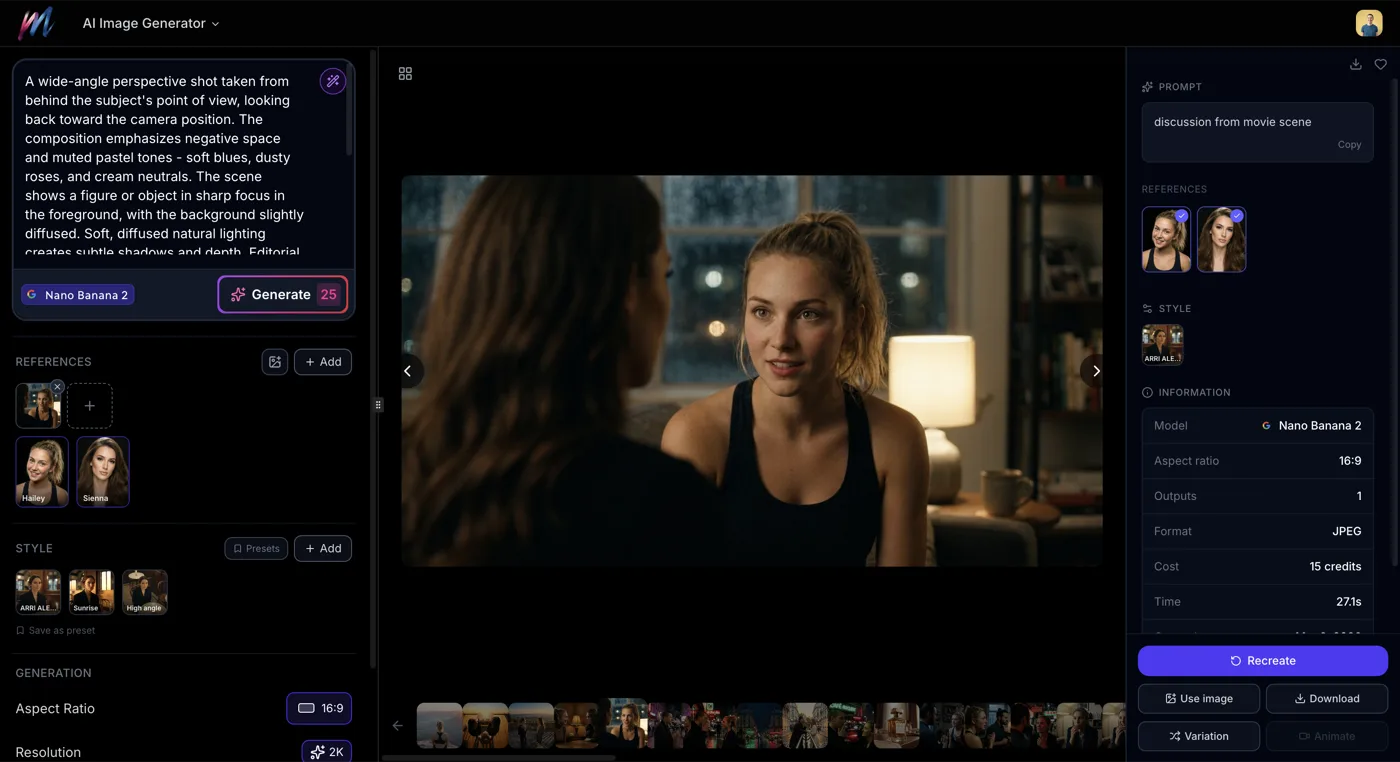 How to Generate AI Images with MeliesLearn how to generate AI images step by step with Melies. Choose from 16 models, write effective prompts, pick the right aspect ratio, and create stunning visuals. - Create the perfect starting frames for your videos
 - Compare video models
 Kling vs Veo vs Hailuo: Best AI Video Model ComparisonCompare Kling v3, Veo 3.1, Hailuo 02, WAN v2.2, Seedance, and LTX 2 Pro AI video models. Quality, speed, credits, duration, and features compared for 2026. - Deep-dive model comparison
 - Create AI actorsAI Character Generator: Create Consistent AI CharactersUse the Melies AI character generator to create consistent characters across scenes. Browse 148 pre-built AI actors and generate images with the same character every time. - Consistent characters across your video scenes
- Create a full AI film
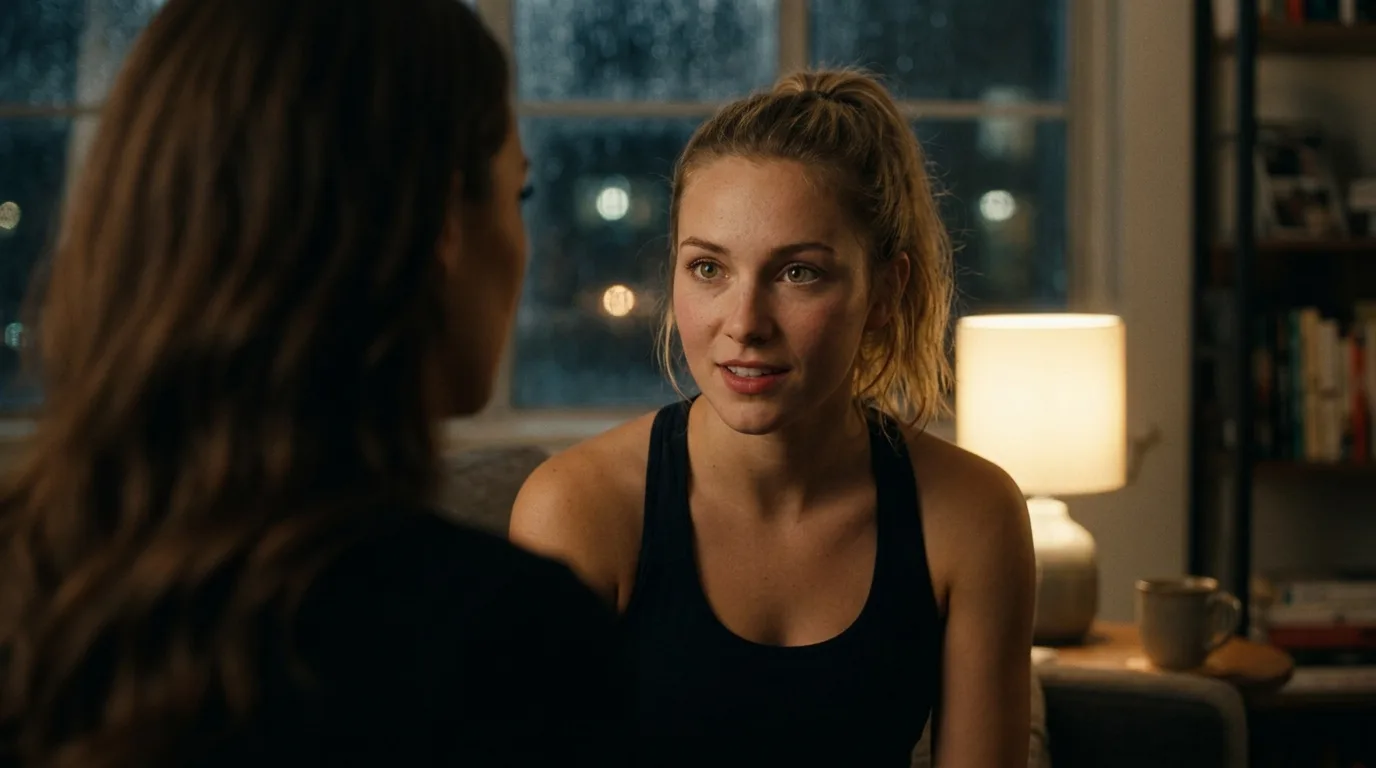 AI Filmmaking: How to Create an AI Film from Idea to ExportLearn the complete AI filmmaking workflow with Melies. Generate ideas, cast AI actors, create storyboards, produce video clips, edit on a timeline, and export your finished AI film. - The end-to-end filmmaking guide
Visit the AI Video Generator to start creating, and check the pricing page for credit packages.